
Everything Your Router Settings Page Is Quietly Telling You
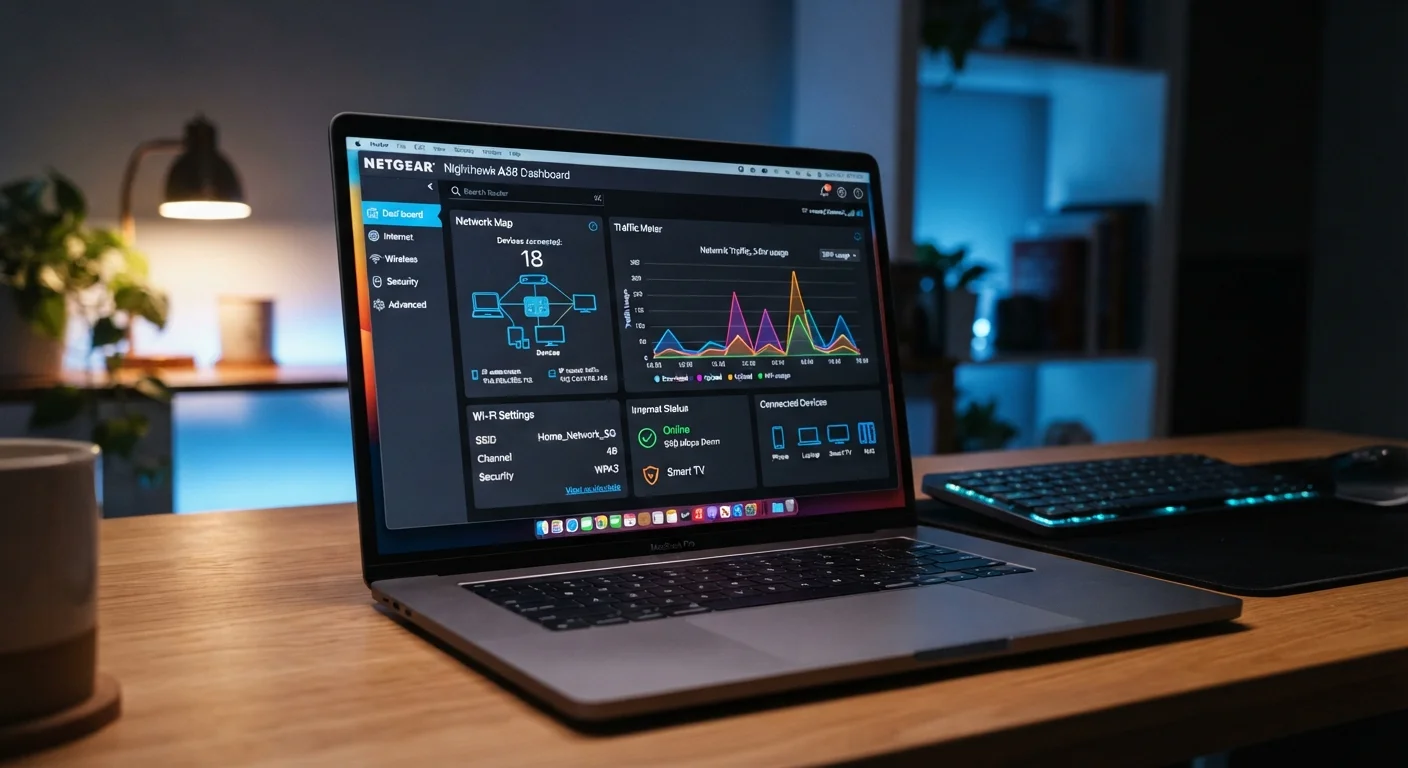
Photo credit: FindersGroove.com | Discover Important Information
In this article
Channels, bands, QoS, firmware — your router's admin panel holds real answers. A plain-language walkthrough of what each setting does.
How to Get Into Your Router's Admin Panel
Most home routers are accessible by typing a local IP address - commonly 192.168.1.1 or 192.168.0.1 - into any browser on your home network. You'll be prompted for a username and password, which are often printed on the router's label. If they've never been changed, they may still be the factory defaults.
Once inside, you'll find a dashboard that exposes the real mechanics of your home network. It's not as intimidating as it looks - and understanding even a handful of settings can meaningfully improve your internet experience. For context on how all these connected devices interact once they're on your network, the Smart Home Technology Explained guide covers the fundamentals.
| Common router admin addresses | 192.168.1.1 or 192.168.0.1 |
| Default login location | Printed on router label or in manual |
| Recommended Wi-Fi encryption | WPA3 (or WPA2 if WPA3 unavailable) |
| Firmware update frequency | Check every 3-6 months at minimum |
| 2.4 GHz best use | Long range, IoT devices, low-bandwidth tasks |
| 5 GHz best use | High-speed streaming and gaming at close range |
The Settings That Actually Affect Your Daily Experience
Wireless band (2.4 GHz vs. 5 GHz): Most modern routers broadcast two frequencies. The 2.4 GHz band travels farther and penetrates walls better but is slower and more congested. The 5 GHz band is faster but has a shorter range. Streaming video in the same room as your router? Use 5 GHz. Smart home sensors on the far side of the house? 2.4 GHz is more reliable. If you want to understand how different protocols handle these trade-offs, see the wireless protocols explainer.
Wi-Fi channel: Within each band, routers operate on specific channels. When too many nearby networks share the same channel, performance degrades. Many routers default to automatic channel selection, but your admin panel usually shows which channel is currently active and lets you override it manually.
QoS (Quality of Service): This setting lets you prioritize traffic types - for example, ensuring video calls get bandwidth before a background software update. Not all routers implement QoS equally, but when it's available and configured, it reduces the lag spikes that plague households with multiple heavy users.
Firmware version: Buried in your admin panel is a firmware version number - the software your router runs. Outdated firmware is one of the most common and overlooked home network vulnerabilities. Many routers can check for updates automatically; enabling that option is one of the higher-impact things you can do in a single click.
Firmware
The built-in software that runs your router's core functions. Keeping it updated patches security vulnerabilities and can improve performance or add features.
QoS (Quality of Service)
A router feature that lets you set traffic priorities, ensuring bandwidth-sensitive tasks like video calls get preference over lower-priority background activity.
SSID
The name of your Wi-Fi network as it appears to devices searching for a connection. You can rename it in your admin panel's wireless settings.
WPA3
The current standard for Wi-Fi encryption, replacing WPA2. It makes it significantly harder for outsiders to crack your network password or intercept traffic.
Guest Network
A secondary Wi-Fi network that operates separately from your main one, keeping guest devices and IoT gadgets isolated from your primary computers and phones.
DHCP
A protocol that automatically assigns IP addresses to devices joining your network. Your router acts as the DHCP server for your home by default.
Security Settings Worth Knowing
Encryption type: Look for WPA3 if your router supports it; WPA2 is acceptable but older. WEP is obsolete and should never be used. Your admin panel shows the current encryption mode under wireless security settings.
Guest network: A guest network creates a separate Wi-Fi segment that's isolated from your main devices. Visitors - and IoT gadgets like smart bulbs or thermostats - can connect without touching the same network layer as your laptop or phone. This is a meaningful security boundary worth enabling. The security realities of smart devices article explains why network segmentation matters.
Connected devices list: Your admin panel typically shows every device currently connected to your network. Scanning this list periodically is a quick way to spot an unfamiliar device - which could indicate an unauthorized connection or simply a forgotten gadget. Curious about what those devices are doing with your data? The everyday devices data collection explainer is worth a read.
Remote management: Many routers offer the option to access the admin panel from outside your home network. Unless you have a specific need for it, this setting is best left disabled - it reduces your router's exposure to external threats.
83%
Routers never updated by owners
A study by the American Consumer Institute found a large majority of home routers run outdated firmware, leaving them exposed to known vulnerabilities.
2x
Throughput difference between bands
Under typical home conditions, 5 GHz connections can deliver roughly twice the throughput of 2.4 GHz at comparable distances, though actual gains vary by device and environment.

Author
Tech & Gadgets Editorial Team
Tech & Gadgets Editorial Team is the collective byline for our editorial team and contributor network. Articles published under this byline or an editorial pen name are researched, written, and reviewed according to our editorial standards for clarity, consistency, and independence before publication.
View all articles →