
Getting More From a Tablet Without Buying a New One
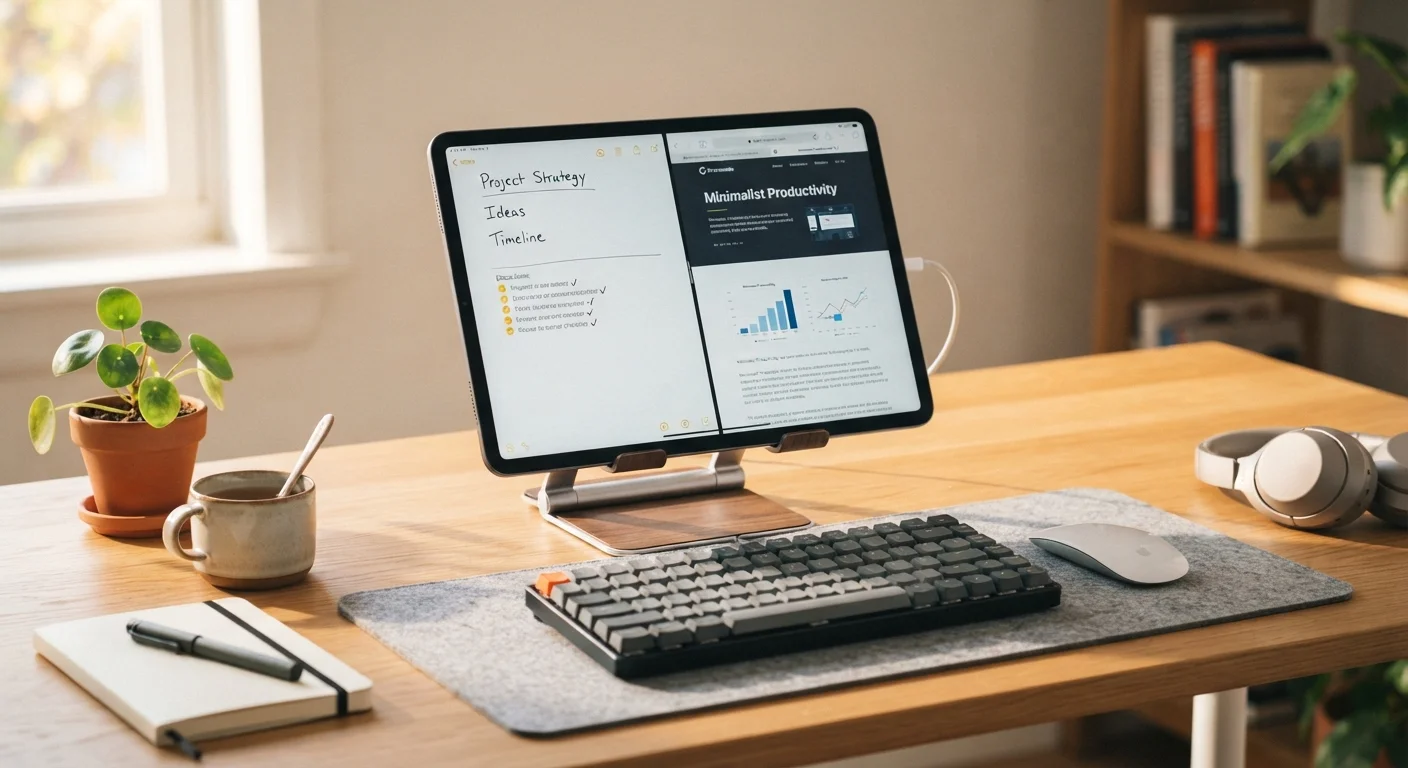
Photo credit: FindersGroove.com | Discover Important Information
In this article
Storage management, input accessories, split-screen workflows, and display settings — practical ways to extend a tablet's usefulness significantly.
Key Takeaways
- Clearing cached data and offloading unused apps can recover significant storage space on any tablet.
- A Bluetooth keyboard and adjustable stand shift a tablet toward a capable laptop-like workflow.
- Split-screen and floating window modes let you multitask without switching apps constantly.
- Display calibration and blue-light settings meaningfully affect both comfort and battery life.
- Most tablets have untapped software features that require no spending whatsoever.
Why This Is Worth Doing Before Upgrading
Tablets tend to underperform their actual hardware capability - not because of age, but because default settings and accumulated digital clutter get in the way. A device that felt snappy at purchase can feel sluggish after a year of use for reasons that are entirely reversible. Understanding this changes the calculus on replacement: in many cases, the tablet you already own can be meaningfully more useful with an hour of deliberate setup.
This is worth framing clearly: upgrading hardware solves some problems and creates others, including the financial one. If you're weighing that decision, our guide on value-focused purchasing is a useful companion. And if you're also thinking about adding a smart display to your setup, there are good questions to ask first.
The steps below focus on four areas where the real-world payoff is highest: storage, software configuration, input setup, and display settings.
What you will need
What You'll Need
Most of the steps in this guide require nothing beyond the tablet itself. The optional accessories below expand what the device can do - particularly for productivity - but they are not required to see meaningful improvement.
Bluetooth Keyboard
Enables efficient text entry and keyboard shortcuts that dramatically speed up document and email work.
Tablet Stand or Adjustable Case
Positions the screen at an ergonomic angle when using an external keyboard or during video calls.
USB-C or Lightning Hub (if compatible)
Expands connectivity to allow external storage, HDMI output, or wired peripherals on supported tablets.
Once you have what you need, work through the steps in order. Steps 1 and 2 address system health, which can affect the results of everything that follows.
Back Up Before Making System Changes
Before clearing caches, adjusting developer options, or performing a factory reset, back up your tablet to cloud storage or a computer. Some storage-clearing steps are irreversible, and app data not synced to a cloud account can be permanently lost. A two-minute backup now prevents real frustration later.
Step-by-Step Instructions
Follow these steps at your own pace. Steps 1 through 3 address the most impactful changes; steps 4 through 6 build on them for a more capable daily setup.
Audit and clear your storage
Open Settings → Storage and review what is consuming space. Most tablets break this down by category - apps, media, documents, and cached data. Tap into each category and delete content you no longer need. Pay particular attention to cached data from streaming and photo apps, which can quietly accumulate several gigabytes over time.
For apps you rarely open, use the Offload (iOS) or Free Up Space (Android) option rather than a full delete - this removes the app but preserves its settings and data, so reinstalling later picks up where you left off.
Update the operating system and all apps
Outdated software is one of the most common causes of sluggish tablet performance. Go to Settings → General → Software Update (iOS/iPadOS) or Settings → System → System Update (Android) and install any pending updates. Then open your app store and update all installed apps.
OS updates routinely include performance optimizations and bug fixes that are separate from new features. Many users notice a tangible speed improvement after running updates they had been postponing.
Configure split-screen and multitasking
Both major tablet platforms support running two apps side by side. On iPadOS, open the first app, then swipe up from the bottom to access the Dock, and drag a second app to the left or right edge of the screen to activate Split View. On Android tablets, long-press the recent apps button or use the taskbar to enter split-screen mode.
Once active, you can adjust the divider to give more screen space to whichever app needs it. Common productive pairings include a browser alongside a notes app, or email alongside a calendar.
Set up a keyboard and adjust input settings
Pair a Bluetooth keyboard via Settings → Bluetooth. Once connected, explore the keyboard shortcut reference built into your OS - on iPadOS, hold the Command key to see available shortcuts for the active app. On Android, many keyboards support similar modifier-key shortcuts.
Also review Settings → General → Keyboard to disable auto-correct behaviors that slow you down, and enable text replacement shortcuts for phrases you type frequently.
Calibrate your display for comfort and battery life
Navigate to Settings → Display and review these three settings: screen resolution (some tablets default to a lower setting to preserve battery - enabling the full resolution improves visual clarity), True Tone or adaptive color (reduces eye strain in varied lighting), and Night Shift or blue-light filter (useful in evening hours).
Reducing screen timeout to one or two minutes also meaningfully extends battery life during a typical workday without requiring behavioral change.
Reorganize your home screen and notifications
A cluttered home screen creates decision fatigue every time you pick up the device. Group apps into folders by task - work, media, utilities - and move your most-used apps to the dock for one-tap access. Then go to Settings → Notifications and disable banners for any app that doesn't genuinely require immediate attention.
Fewer interruptions and a cleaner layout reduce friction, making the tablet feel faster and more purposeful even though nothing hardware-related has changed.
Avoid Third-Party 'Cleaner' Apps
Apps marketed as storage cleaners or RAM boosters often deliver minimal benefit while requesting broad system permissions. Modern tablet operating systems manage memory automatically. Stick to the built-in storage management tools in your device's settings instead.
Making the Improvements Stick
The adjustments above deliver the most value when they become part of a regular maintenance rhythm rather than a one-time fix. A monthly storage check and quarterly app audit prevent the gradual slowdown that makes older tablets feel unusable. Our editorial piece on habits that extend device lifespan covers the broader discipline well.
Use Display Auto-Brightness Strategically
Auto-brightness works well indoors but often overreacts in mixed lighting. Consider setting a manual baseline brightness around 40-50% for typical indoor use, then letting the sensor adjust from there. This keeps the screen comfortable and conserves battery more predictably than leaving auto-brightness fully in control.
It's also worth thinking about how you actually use the device day-to-day. If most of your time is passive scrolling, the split-screen workflow won't help much - but the storage and display steps still will. For a more reflective look at device habits, rethinking how you measure screen time offers a useful framework. And if reading is a significant part of your tablet use, it's worth knowing where dedicated e-readers genuinely outperform tablets - and where they don't.

Author
Tech & Gadgets Editorial Team
Tech & Gadgets Editorial Team is the collective byline for our editorial team and contributor network. Articles published under this byline or an editorial pen name are researched, written, and reviewed according to our editorial standards for clarity, consistency, and independence before publication.
View all articles →